Important
AE Connect won't work until you link your privacy policy.
You also confirm how you'll use your audience's data and what your cookie notice says. For help writing a privacy policy, read Privacy policy basics.
Navigate to your AE Connect settings by clicking Continue Setup on your dashboard home page, by clicking the AE Connect quick link, or by clicking the gear icon in the upper right menu:


From your AE Connect application page, click the Privacy & Permissions tab.

Open the Data Protection & Privacy sub-tab. In Privacy Policy (1), enter the full web address of your privacy policy, for example
https://example.com/privacy. This is required.Data Use (2) is filled in for you with: "We respect your privacy. We may use your data for personalized offers, email, and advertising as described in our Privacy Policy." Edit it to describe how you'll actually use your customers' data. This is required.
Cookie Policy (3) is filled in for you with: "We use cookies on this site to improve your sign-in experience." Edit it if needed. This is required.
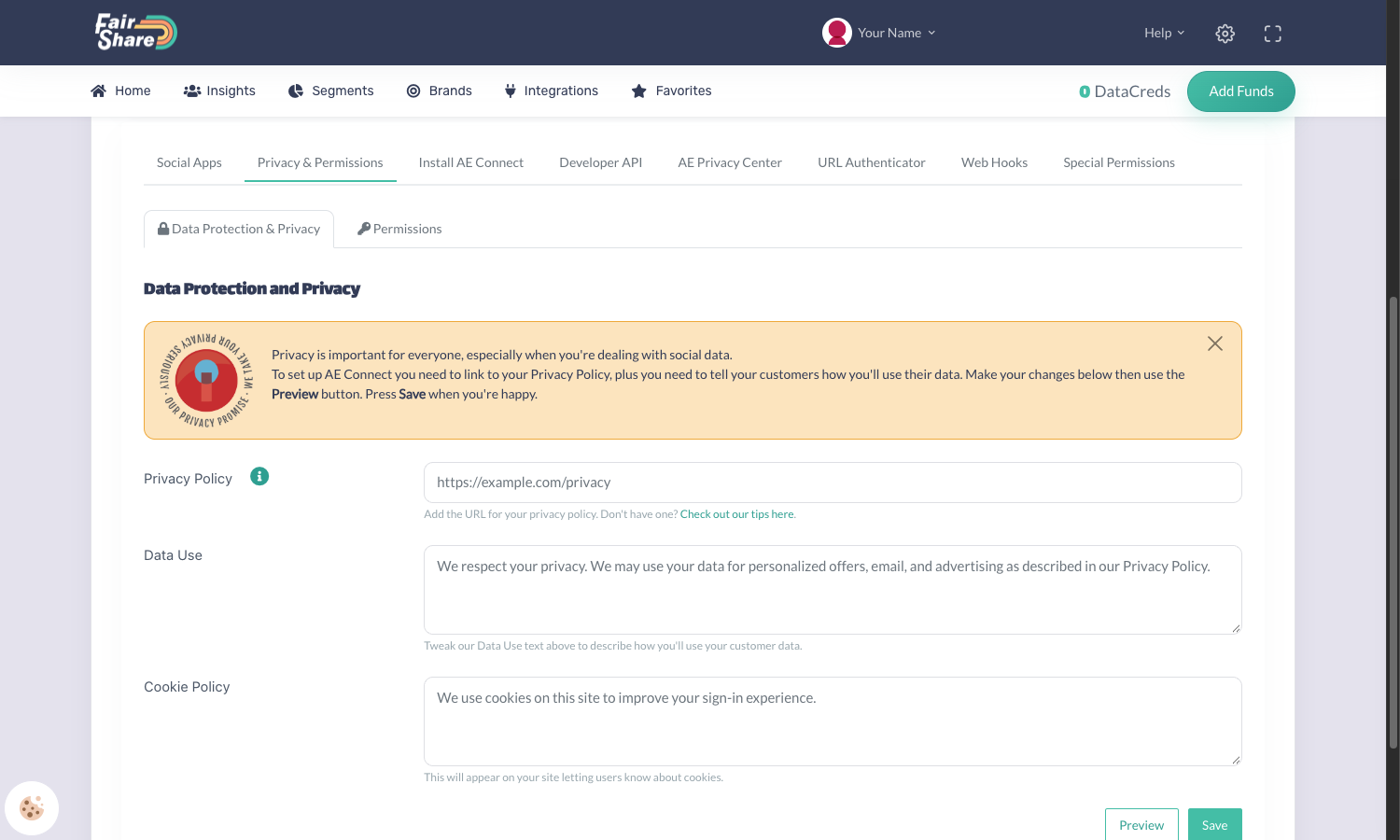
Select Preview to see what your customers will see, then click Save.
Good to know: the red message "This url is not valid, please try another url" appears under the Privacy Policy field before you type anything. It goes away once you enter a valid address.
Need help with your privacy policy settings? Submit a request and choose "AE Connect install".
Next Article: Allowlist Your Domain
Was this article helpful?
That’s Great!
Thank you for your feedback
Sorry! We couldn't be helpful
Thank you for your feedback
Feedback sent
We appreciate your effort and will try to fix the article